
How to Use InaSAFE?
InaSAFE Options
The InaSAFE plugin provides an options dialog which allows you to define various options relating to how InaSAFE will behave.
1. The options dialog can be launched by clicking on the InaSAFE plugin toolbars options icon (as shown below) or from QGIS .

2. Then the dialog will appear, looking something like this:
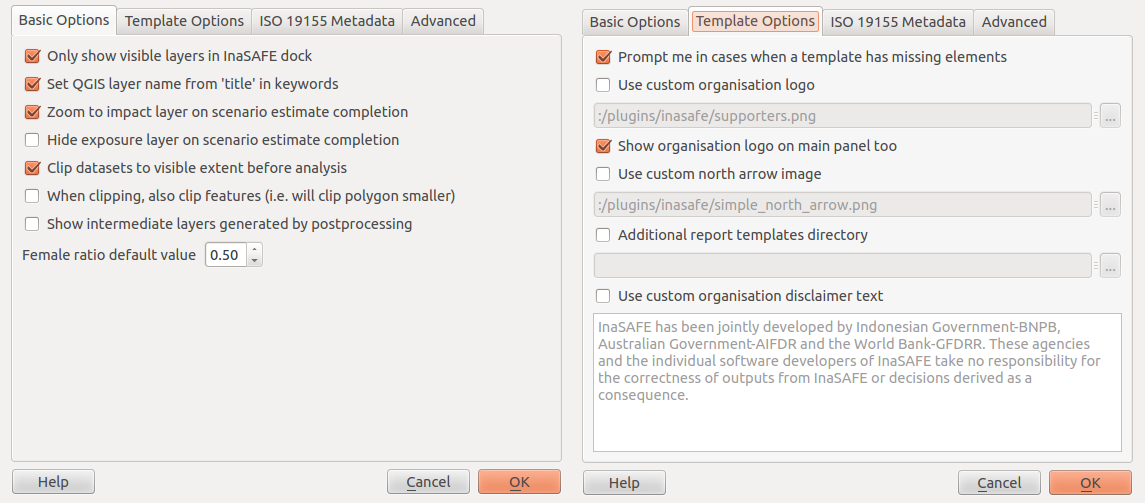
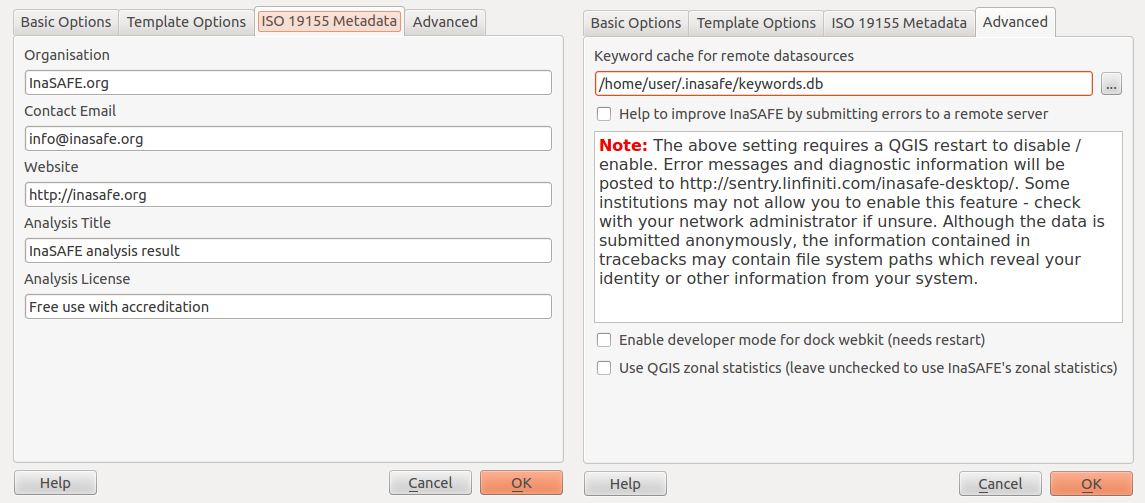
This dialog is divided into four tabs namely:
- Basic Options
- Template Options
- ISO 19155 Metadata
- Advanced
The following options are available on the Options Dialog:
Basic Options
- Only show visible layers in the InaSAFE dock : This option will determine whether all hazard and impact layers should be listed in the InaSAFE dock’s combo boxes or (when checked) only visible layers.
- Set QGIS layer name from ‘title’ in keywords : This option will cause QGIS to name layers in the Layers tree using the title keyword in the layer’s keywords file. If the layer has no ‘title’ in its keywords, or it has no keywords at all, the normal QGIS behaviour for naming layers will apply.
- Zoom to impact layer on scenario estimate completion : This option will cause the map view to zoom in/out in order to completely contain the InaSAFE impact scenario map output when an analysis completes.
- Hide exposure layer on scenario estimate completion : This option will cause QGIS to turn off the exposure layer used when InaSAFE completes the current analysis. You can re-enable the layer visibility again by checking its checkbox in the legend.
- Clip datasets to visible extent before analysis : This option will cause QGIS to clip hazard and exposure layers to the currently visible extent on the map canvas.
- When clipping, also clip features (e.g. will clip polygon smaller): This option will clip any polygons that extend beyond the analysis extents so that they are contained by the analysis extents. For example if you have a flood hazard polygon layer that extends far beyond your area of interest, the flood polygons will be reduced so that only the part inside of your area of interested is retained. This can speed up processing time somewhat.
- Show intermediate layers generated by postprocessing : This option will cause QGIS to show the intermediate files generated by the postprocessing steps in the map canvas.
- Female ratio default value : This is the default female to total population ratio used for generating Gender breakdowns
Template Options
- Prompt me in cases when a template has missing elements: When enabled, this option will cause InaSAFE to prompt user when a template has missing element when the user try to print the report or open it in the composer.
- Use custom organisation logo: This option is used to determine a custom logo that will be used as organisation logo in the pdf of your impact scenario project. If this option is disabled, InaSAFE will use the default organisation logo. See toolbar_reports in the InaSAFE User-Manual for more information on the reports.
- Show organisation logo in the main panel too: If this is enabled then the selected organisation logo (if any) will be displayed in the bottom of the inasafe dock panel.
- Use custom north arrow image: This option is used to determine a custom north arrow that will be used as north arrow image in the pdf of your impact scenario project. If this option is disabled, InaSAFE will use the default north arrow image.
- Additional report templates directory: This option is used to determine a directory with custom templates. Templates from this directory will be available for usage when generating report on your impact scenario project.
- Use custom organisation disclaimer text: This option is used to change default disclaimer text, printed in reports. If this is enabled, just enter your own text and it will be used instead of the default one. See toolbar_reports in the InaSAFE User-Manual for more information on the reports.
Advanced
- Keyword cache for remote datasources : This option is used to determine where keywords are stored for datasets where it is not possible to write them into a .keywords file. See keywords_system in the InaSAFE User-Manual for more information on the keywords system.
- Help to improve InaSAFE by submitting errors to a remote server : This option, when enabled, will submit diagnostic information back to an InaSAFE project server in the event of any error taking place that we are able to trap. The information provided is useful to the InaSAFE team to improve the robustness of the software we produce and to spot trends in issues people encounter. Please note the warning text below this option which is included here in full:
Note
The above setting requires a QGIS restart to disable/enable. Error messages and diagnostic information will be posted to http://sentry.linfiniti.com/inasafe-desktop/ . Some institutions may not allow you to enable this feature - check with your network administrator if unsure. Although the data is submitted anonymously, the information contained in tracebacks may contain file system paths which reveal your identity or other information from your system.
- Enable developer mode for dock webkit (needs restart) : With this option enabled, you can right click on the report area and use the webkit debug tools to debug the output. This option is intended for advanced users only.
- Use QGIS zonal statistics : With this button you can toggle between using QGIS internal zonal statistics or the one that comes with InaSAFE
Note
You can click on the Help button at any time and it will open the help documentation browser to this page.
Note
Pressing Cancel at any time will close the options dialog and any changes made will not be applied. Pressing OK at any time will close the options dialog and any changes made will be applied immediately.
Note
The exact button order shown on this dialog may differ depending on your operating system or desktop environment.
Adjusting Projection
Before continuing we need to turn one more QGIS functionality on, to enable all data layers display in one projection (WGS-84).
1. For that, go to QGIS
On the lower right, Click  CRS status.
- Tick the Enable on the fly CRS transformation box. And then OK.
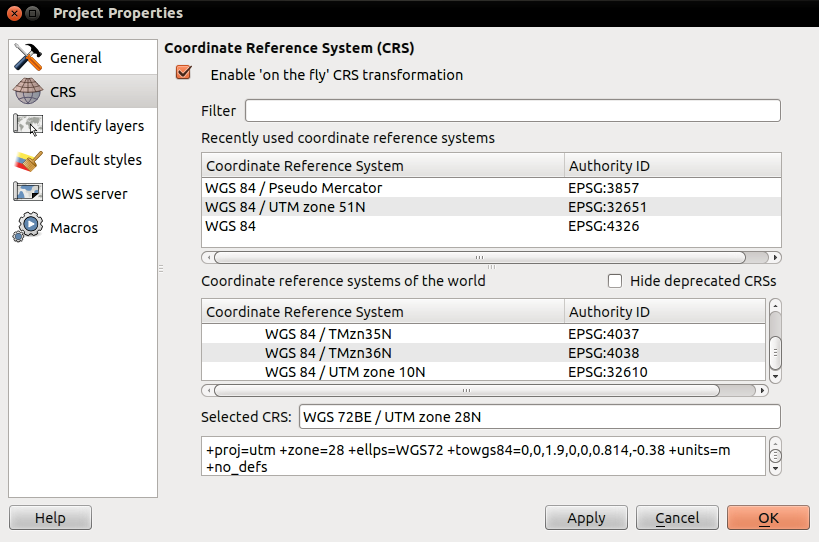
Now, any data layer that we will integrate into our project will be adjusted on the same coordinate.
Exploring InaSAFE Plugin
1. You can drag and drop the dock panel to reposition it in the user interface. For example, dragging the panel towards the left margin of the QGIS application will dock it to the left side of the screen.
2. Depending on your preference you could show the Layer and InaSAFE panel at the same time.
Or have the Layer and InaSAFE panels in a tab systems.
Or for more convenience, having them on top of each other.
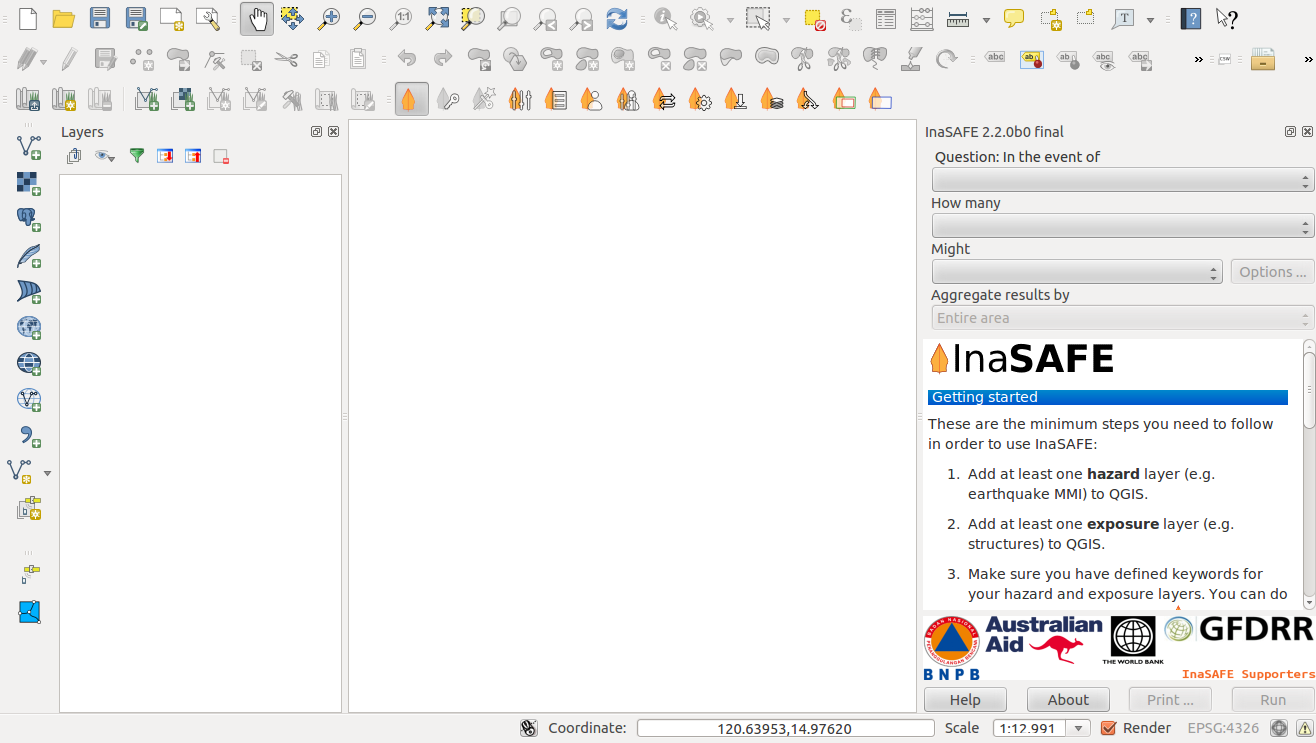
The InaSAFE panel contains 3 sections: Questions, Results and Buttons. We will explore those sections one by one.
The Questions Section
The intention of InaSAFE is to make it really simple and easy to perform your impact analysis. The Questions area provides a simple way for you to formulate what it is you want to find out? All questions are formulated in the form:
In the event of [hazard] how many [exposure] might [impact].
For example: In the event of a flood how many buildings might be closed?
In order to answer such question, InaSAFE developers have built a number of impact functions that cover risk scenarios such as flood, tsunami, volcanic ash fall, earthquake and so on. In our case, we will use the flood impact function.
To answer our question In the event of a flood, how many buildings might be closed, we need to complete all the areas in the Questions section: hazard, exposure, impact.
Hazard
Hazard is the physical event that creates the risk.
A hazard (in the event of) may be represented as a raster layer or as an area (polygon). For example:
- Raster: where each pixel in the raster represents the current flood depth following an inundation event.
- Polygon: where it has been identified that flood has existed in that area (this will not have depth related information)
For our exercise, we will use Tacloban data. Those data
are on your computer at ~/inasafe_data_ph/.
1. We will add the hazard layer in the InaSAFE dock. For that, we need to add the hazard layer from QGIS first. The flood layer is in a raster format, so we will go to the QGIS menu, click on .
Note
InaSAFE 2.0 and later is now allowing to import hazard layer in a vector format.
2. Once you click on that, a pop-up window will appear where you will have to
fetch your flood data. Please select the
noah-Leyte_TaclobanCity_Flood_100year.tif file from the
~/inasafe_data_ph/hazard directory.
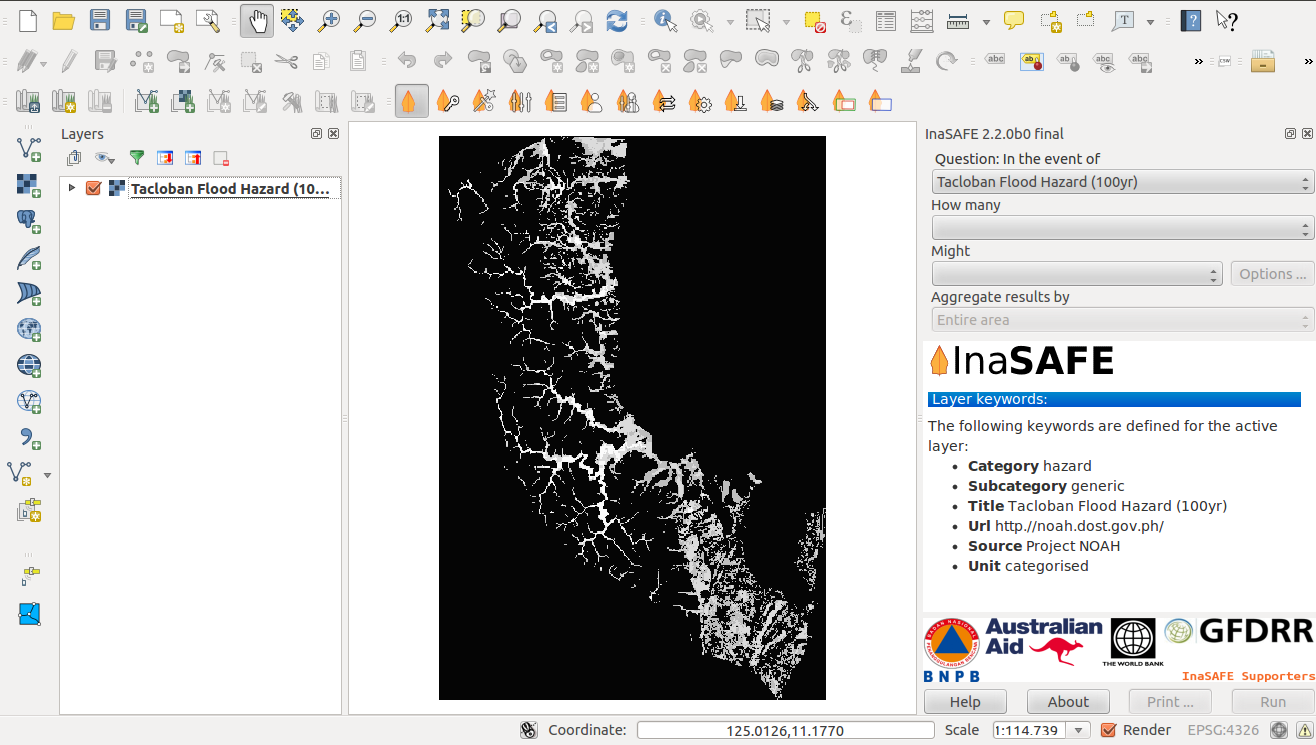
This is a raster data (in GTiff format) that represents flooding in categorical form in
Tacloban area for a return period of 100 years. Adding style on raster.
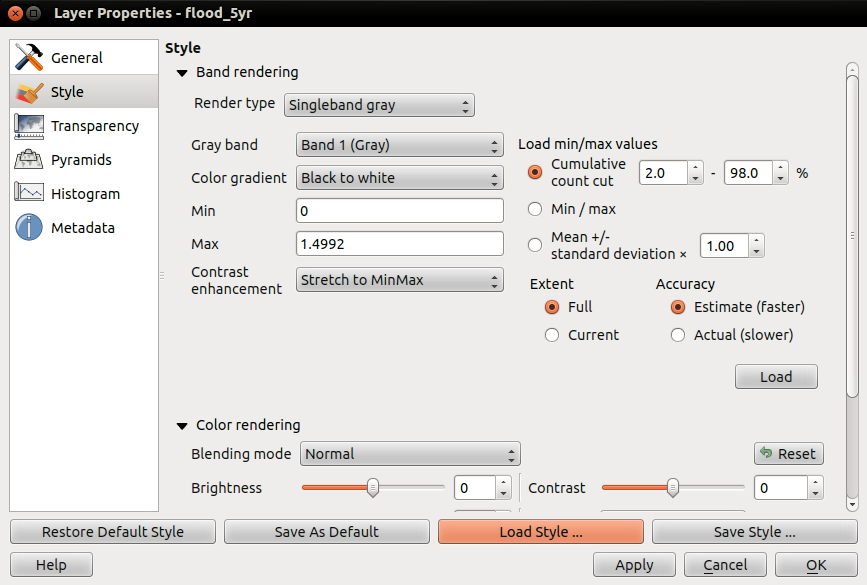
Right click on the Tacloban Flood Hazard (100yr) then select Properties. On Style tab,
click Load Style ... Use the noah-Leyte_TaclobanCity_Flood_100year.qml as your
raster style. file from the ~/inasafe_data_ph/hazard.

You will notice that the layer filled automatically the hazard area in the InaSAFE dock panel. There are two important things to note when uploading data in InaSAFE.
- Data should follow a keyword metadata system that allows InaSAFE to determine if the layer is a hazard or if it is an exposure.
- The area of analysis should overlap.
Adding the Keyword Metadata
You may be wondering how the InaSAFE plugin determines whether a layer should be listed in the In the event of How many combo boxes? The plugin relies on simple keyword metadata to be associated with each layer. Each layer that has a keyword allocating it’s category to hazard will be listed in the In the event of combo. Similarly, a category of exposure in the keywords for a layer will result in it being listed under the How many combo. InaSAFE uses the combination of category, subcategory, units and datatype keywords to determine which impact functions will be listed in the Might combo.
In our exercise, the keywords were already created, so the data could fill automatically the In the event of How many combo boxes. If the keywords were not created in advance, then we will create them by following one of the two steps:
1. Go to the InaSAFE tools on the toolbar, click on the Keyword Editor icon.

Or, open the menu on QGIS toolbar, click on , then click on the in the scroll list.
2. Once you click on the Keyword Editor, a dialog box containing the flood data will be prompted. Since the flood data is a hazard layer, pinpoint the Hazard Category. In the Subcategory, we will choose flood [categorised] because our data represents which category of flood level in Tacloban are affected and not affected.
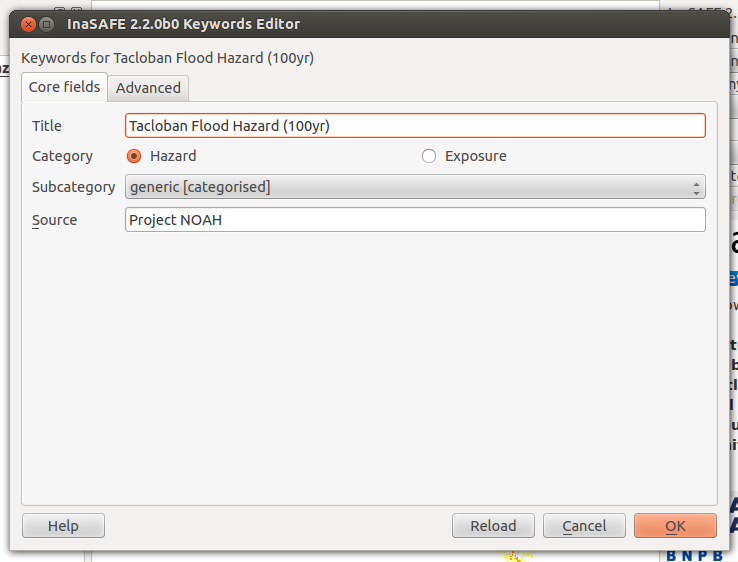
3. Then click OK.
Now the data follow the keyword rule, and can be used in the InaSAFE function.
Setting Exposure in Vector Format
Exposure is the sum of assets that are at risks.
An exposure (How many) layer could be represented, for example, as vector polygon data representing building outlines.
Now, we will add the exposure layer in our InaSAFE project. For that, we need to add the exposure layer to QGIS first. For our first exercise, we will use the data that represents buildings.
1. The OSM building layer is in a vector format, so we will go to the QGIS menu toolbar, click on .
Please note that the exposure data should follow the same keyword system that we explained earlier for the hazard data.
We will create it by using the Keyword Editor.
2. Go to the in the dialog box. Pinpoint the Exposure category.
3. Choose structure in the Subcategory scroll box. Click OK.
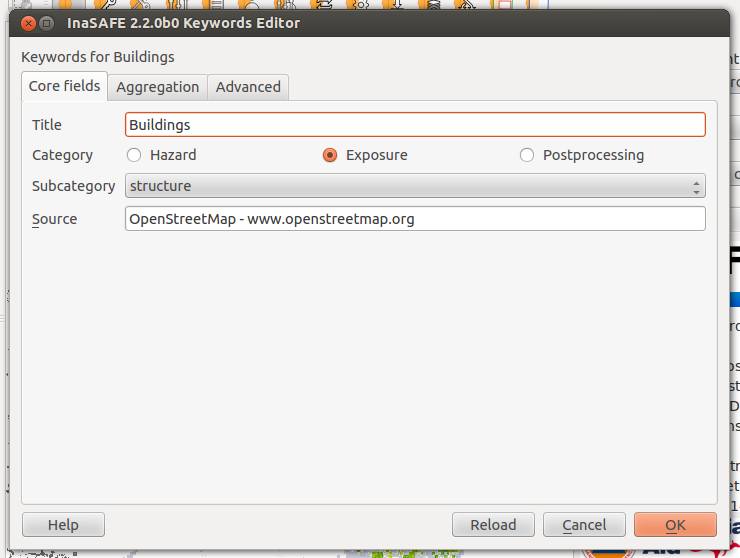
Now our OSM building exposure data can be used in InaSAFE and was automatically entered in the How many box of the InaSAFE dock panel.

Configuring Impact Function
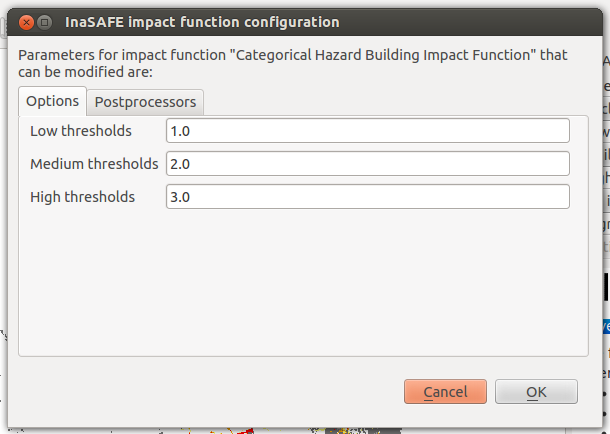
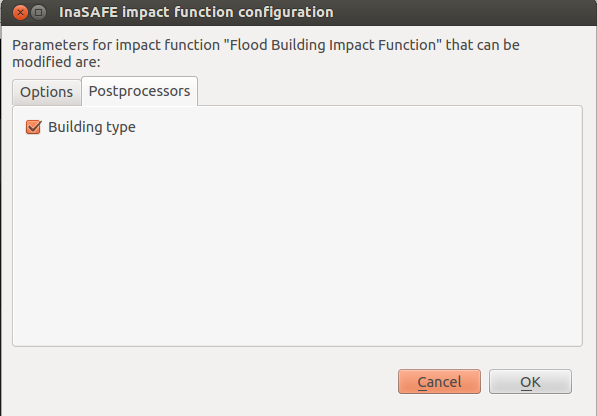
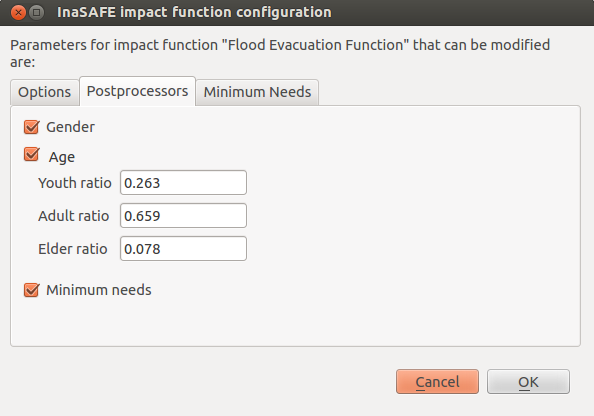
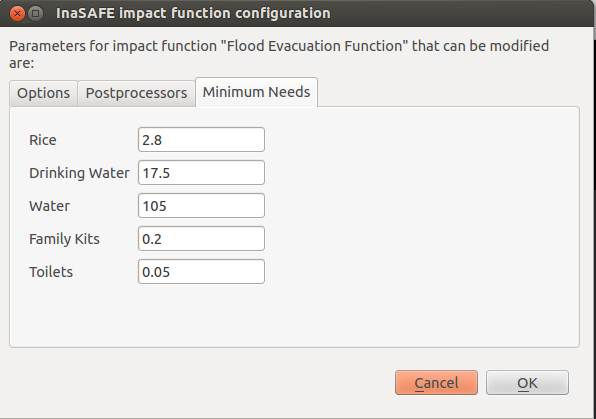
This configuration has a 2 to 3 tabs which are Options, Postprocessors and Minimum Needs which can be customize for the impact result.
On the Option tab, You can see the ` 3 Threshold` low, medium and high thresholds where we’re going to base who are affected in low, medium, high and not affected. For example in flood, low threshold are in flood level category 1 so when we added 1 in the textbox it means Buildings or People who are in low threshold are the affected in low flood level.
On the Postprocessors tab, the collected data are being categorized in the impact result. Since we’re using buildings as an exposure, it will categorized who are flooded in low, medium, high and not flooded according to building types.
Postprocessor for the people who needs to be evacuated has a different categories. There are Gender, Age and Minimum Needs It is categorized in gender to recognized women which will received hygiene packs and for the lactating women who whill received additional rice pack. Age are being categorized especially for the elder to have a better evacuation center.
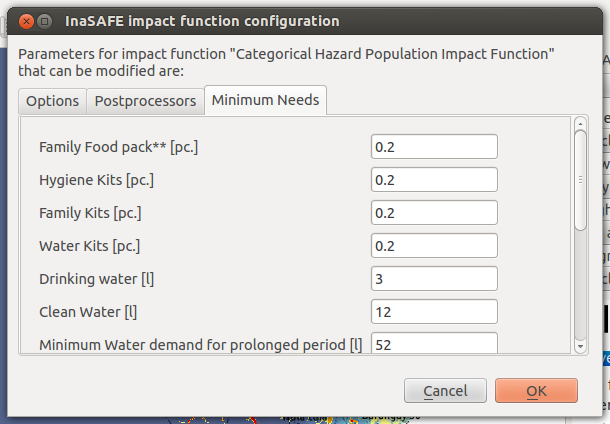
The Minimum Needs tab purpose is to give estimated relief packs to be given in every family who are affected by flood.
Impact Analysis
The impact function (Might) will spatially combine the hazard and exposure input layers in order to postulate what the impacts of the hazard will be on the exposure infrastructure or people. By selecting a combination from the In the event of and How many combo boxes, an appropriate set of impact functions will be listed in the Might combo box.
Impact scenarios are predefined depending on what the decision-maker is looking for. For our flood analysis in Tacloban, we only have on predefined impact function which asks: In case of flood event, how many buildings might be temporarily closed? As we see on the previous step, this is filled automatically by default in the InaSAFE panel dock as soon as the hazard [flood] and exposure [buildings] layers are entered correctly.
The Results Section
1. Now that we have our two input layers and that we know what impacts we would like to assess, click on the Run button at the bottom to start the impact analysis. At the end of the process, figures will be shown in the Results section, a new layer will be added in the QGIS layer panel representing the result of the impact function, and the map will differentiate affected and non-affected building.
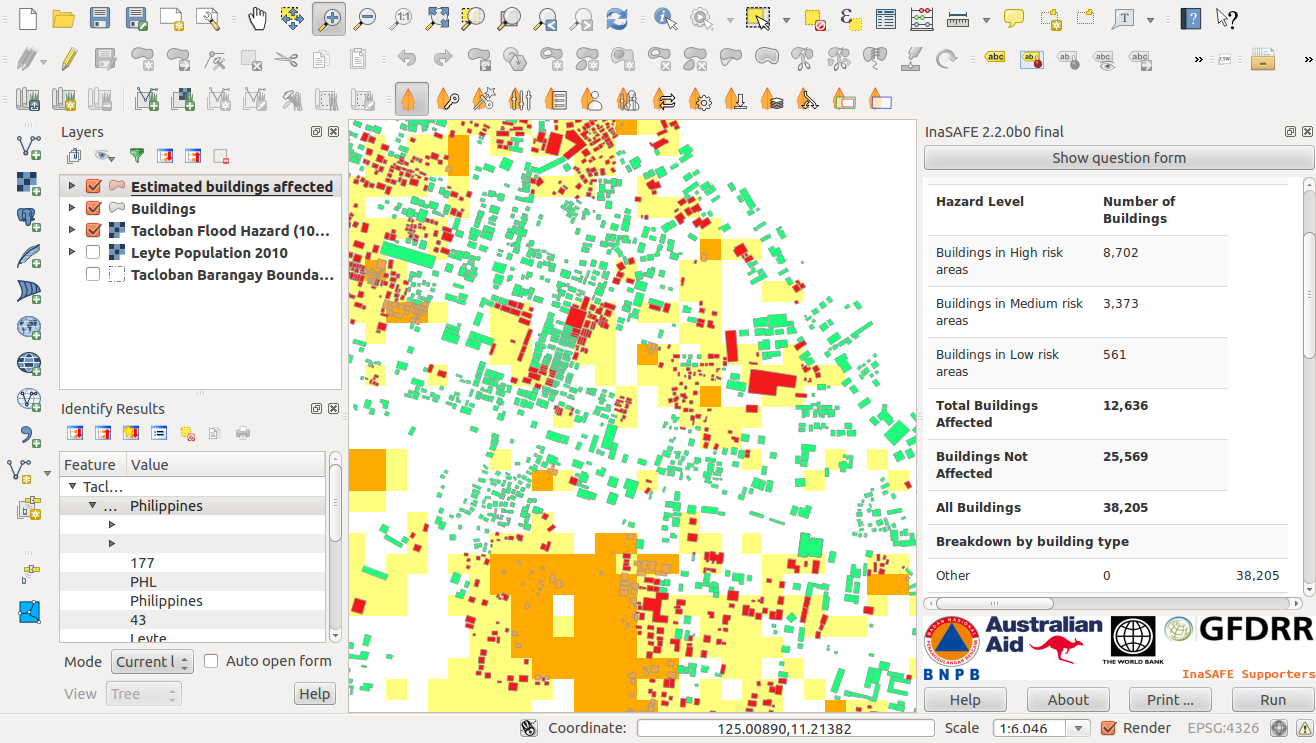
2. The result shows Total Number of Buildings and the Number of buildings that might be temporarily closed in the event of a flood. Also, there is an Action Checklist where the question: Which buildings will be evacuation centres? And a Note description explaining Map shows buildings affected in low, medium and high risk areas.
Print Results
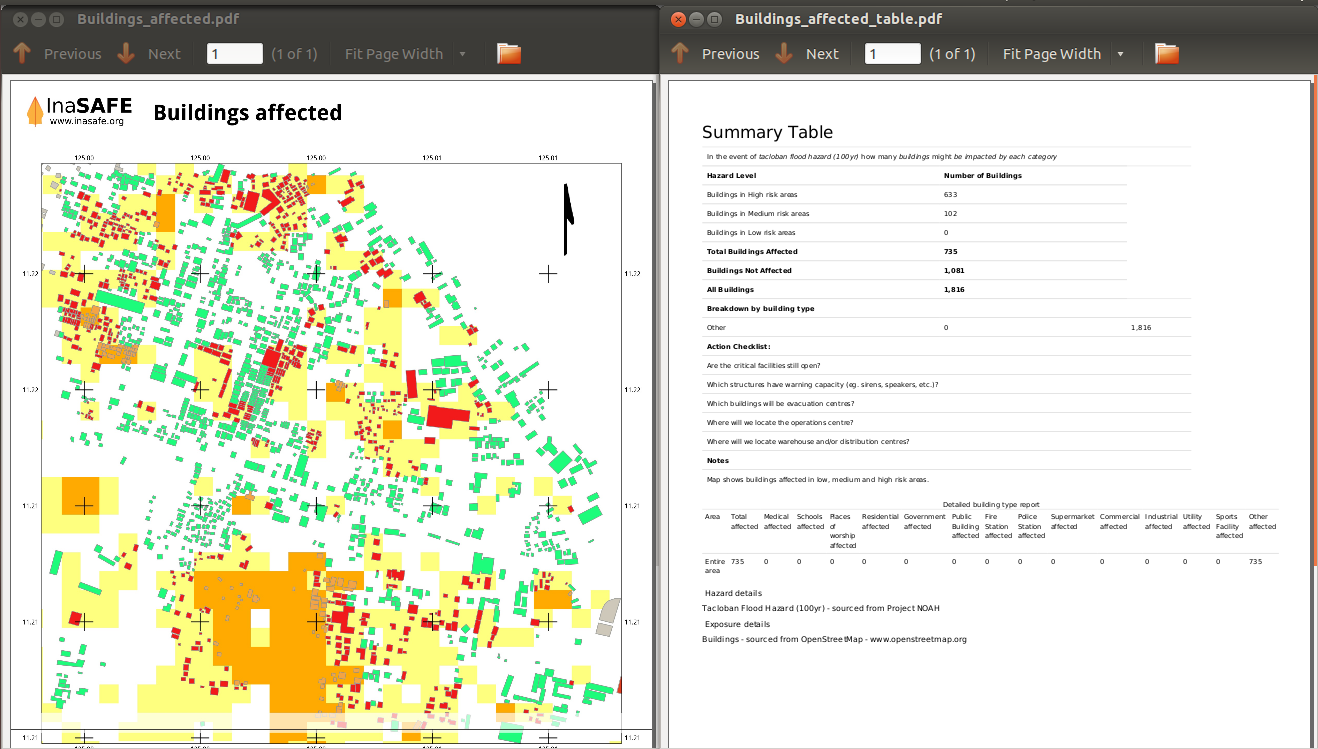
The data shown on the screen can be saved into a PDF file by clicking on Print at the bottom of the InaSAFE panel and a message box will appear. A window will appear in which you can choose the extent to be printed. Choose Analysis extent if you want to print the entire map extent, or choose Current extent to print the analysis based on the current view of the map.
However, any change that you want to make into the final map document should be done before clicking on the Print button of the InaSAFE dock panel. The print should be only use once the data is exactly as you want it to be displayed.
Setting Exposure in Raster Format
- An exposure (How many) layer could be represented, for example, as raster
- data representing population. For our second exercise, we will use the data
that represents population. A raster outline where each pixel represents the number of people resident in that cell.
1. The Population layer is in a raster format, so we will go to the QGIS menu toolbar, click on .
Please note that the exposure data should follow the same keyword system that we explained earlier for the hazard data.
We will create it by using the Keyword Editor.
2. Go to the in the dialog box. Pinpoint the Exposure category.
3. Choose population in the Subcategory scroll box. Click OK.
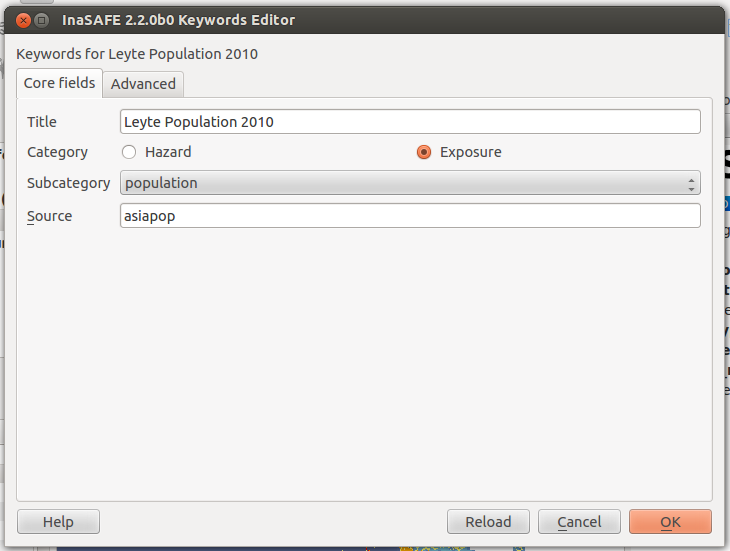
Now our population exposure data can be used in InaSAFE and was automatically entered in the How many box of the InaSAFE dock panel.
4. Click on the Run button at the bottom to start the impact analysis.

Using the Aggregation layer
Impact layers produced by InaSAFE can either be raster or vector type (depending on the exposure data used as input). When doing an aggregation, each feature in the intermediate layer will contain the result of the aggregation. The way the aggregation is calculated depend on the type of the impact layer and on the impact function that was used to produce the impact layer.
1. The aggregation layer is in a vector layer, so we will go to the QGIS menu toolbar, click on .
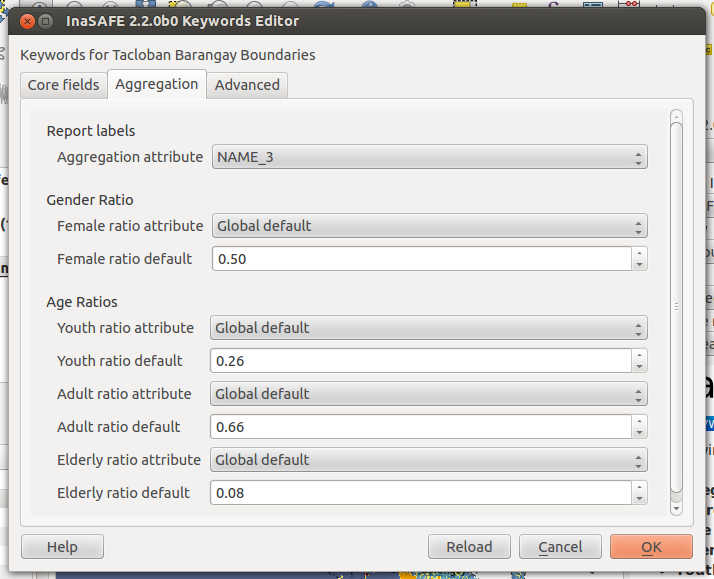
Aggregation layer are usually represents Administrative boundaries. We will going to modify it using the Keyword Editor.
2. Go to the in the dialog box. Pinpoint the Postprocessing category.
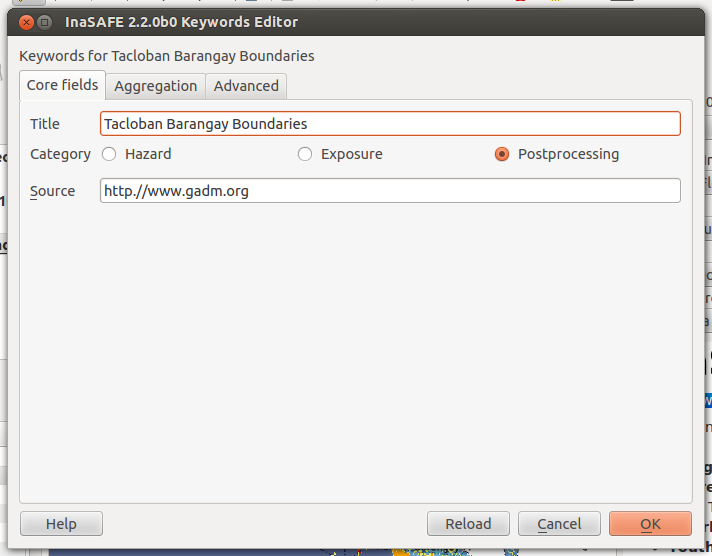
3. Go to Aggregation tab, choose NAME_3 in the Aggregation attribute scroll box Click OK.
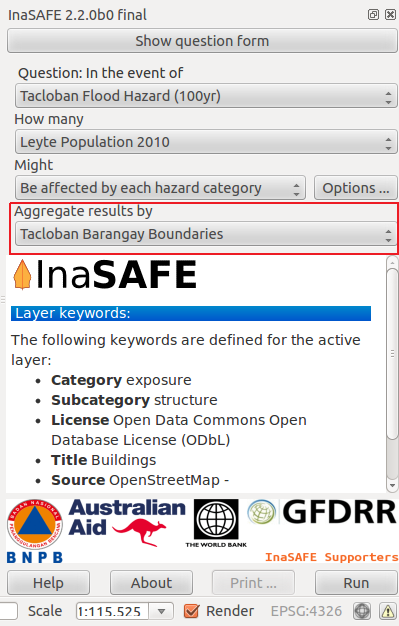
- On the InaSAFE dock, choose Tacloban Barangay Boundaries as aggregator.
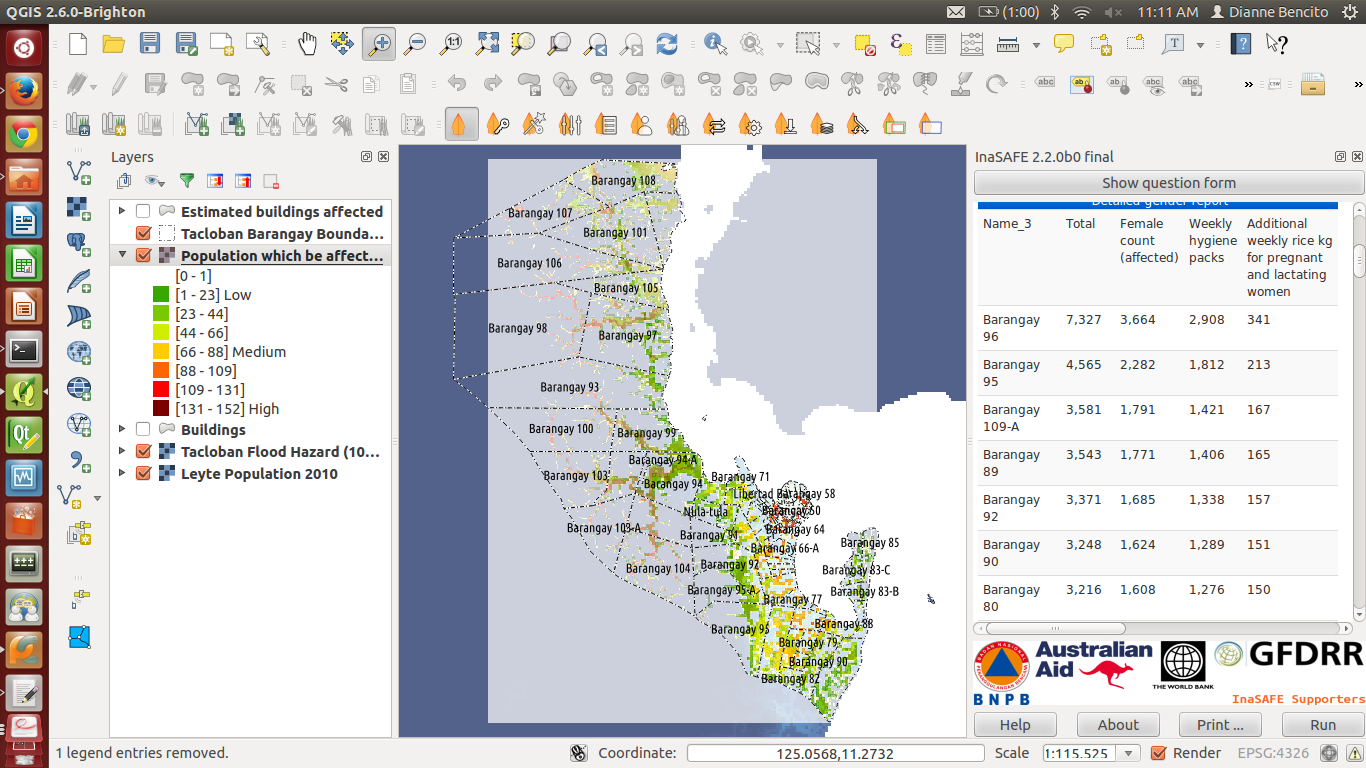
NAME_3 represents boundary for each Barangay, affected population will be aggregated by barangay.
5. Click on the Run button at the bottom to start the impact analysis.
Configuring Minimum Needs
Global Minimum Needs Configuration is a new interface of minimum needs allowing the user to select pre-defined minimum needs (such as rice, water, etc.) with configurable amounts per person. Users also be allowed to add new needs (e.g., potatoes, tent, etc.) with associated amounts and set frequency how long does resource needs be provided (e.g., daily, weekly, etc.).
- Added new toolbar icon for Global Minimum Needs Configuration.

- Add a profile for the minimum needs. Click, `New ...`
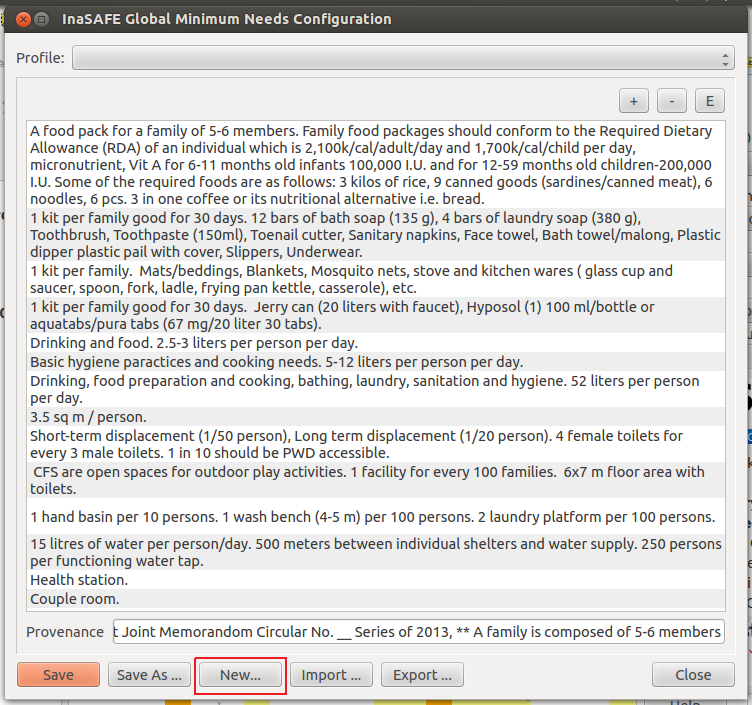
- Add file name on the textbox and choose where you will save the profile.
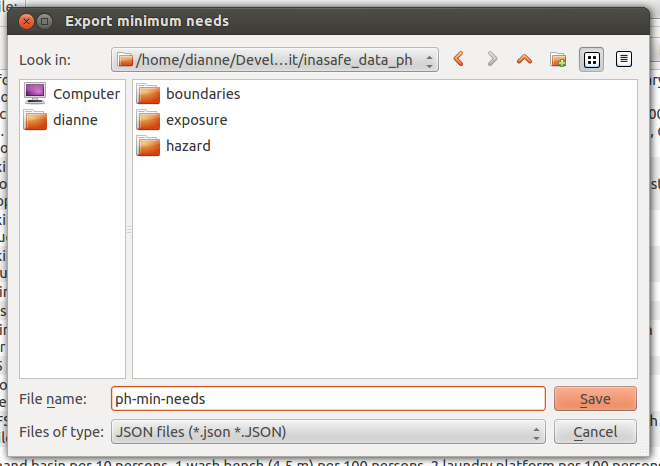
Click Save
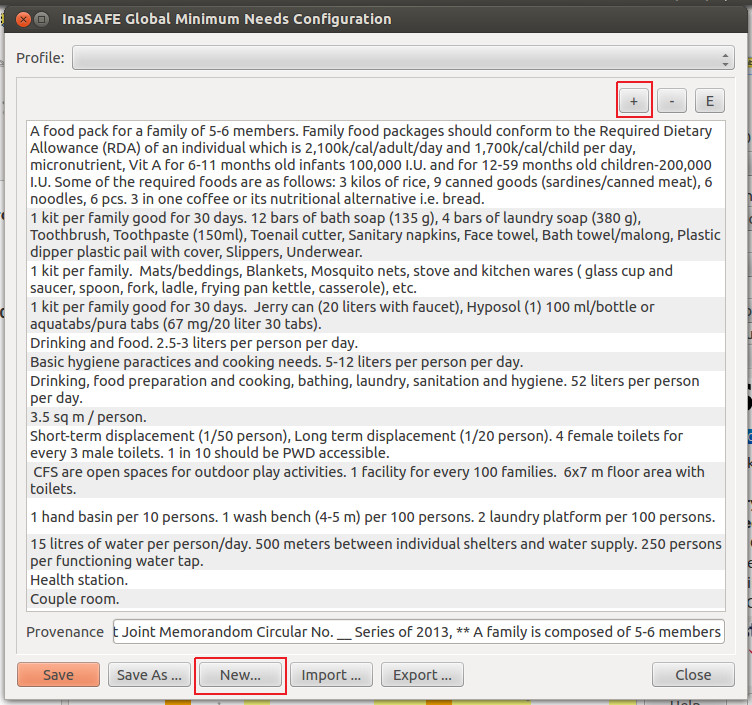
- Add minimum needs on their profile by clicking + button
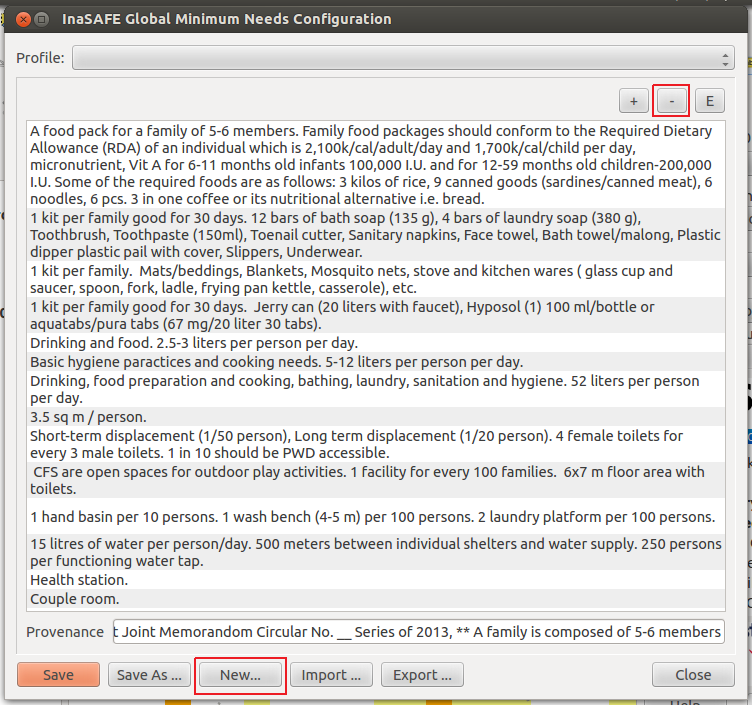
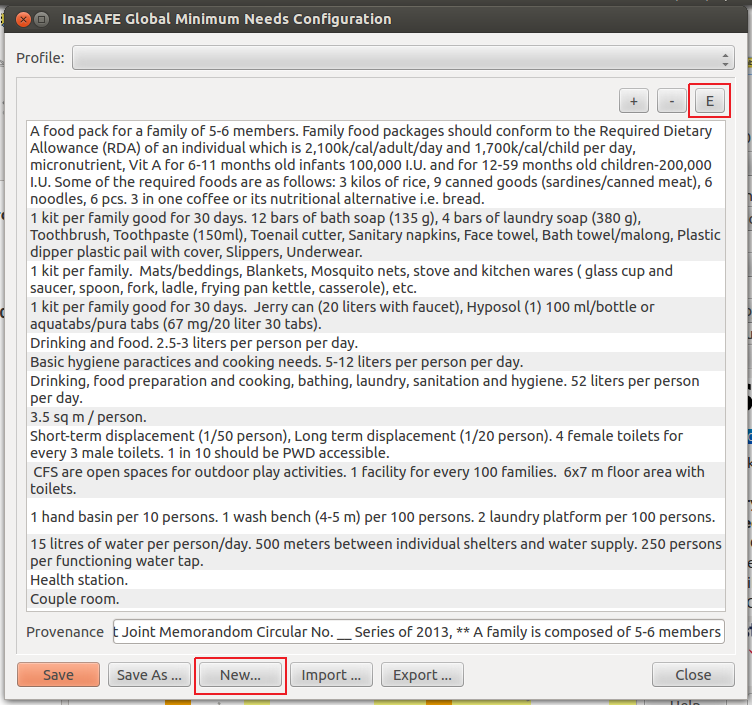
User can also delete and edit a certain minimum needs by clicking the chosen minimum needs, - button means to delete and E button means to edit.
Click Save and Close
5. Go back to Minimum Needs tab in Options and your profile for minimum needs will be loaded.
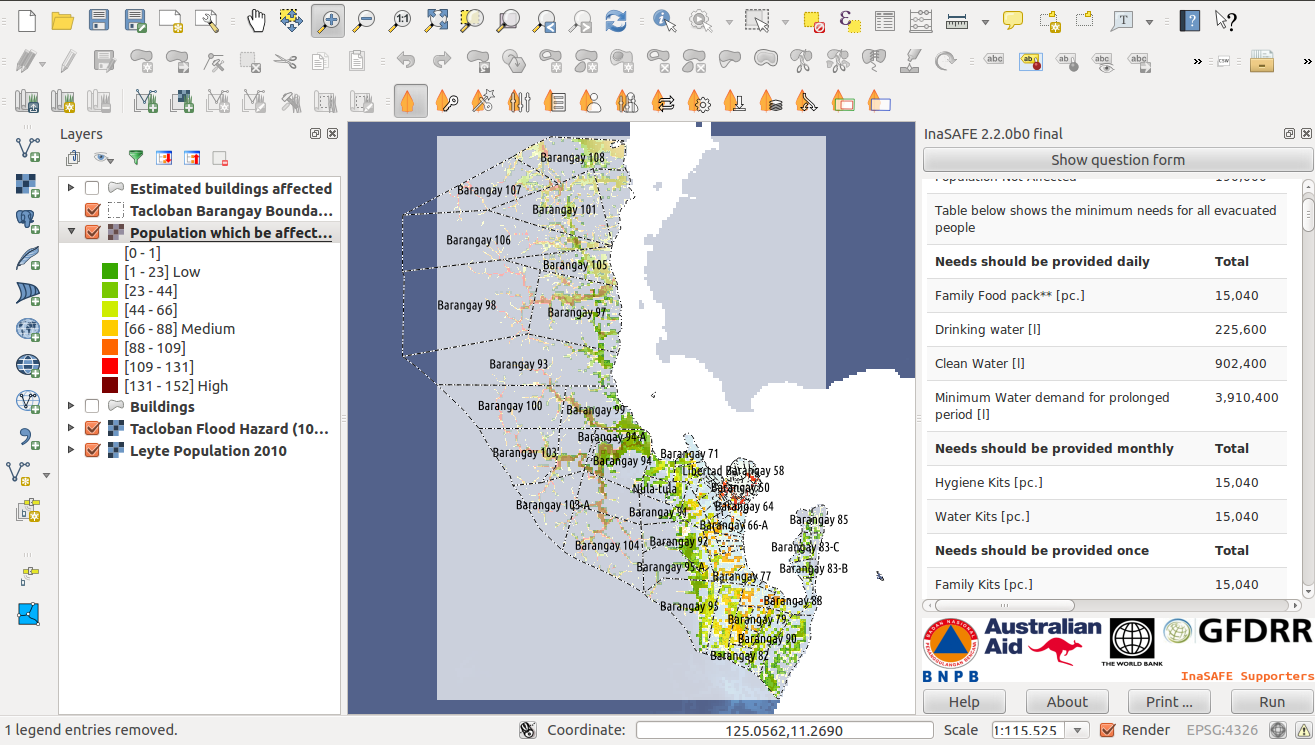
6. Click on the Run button at the bottom to start the impact analysis. Then, Print
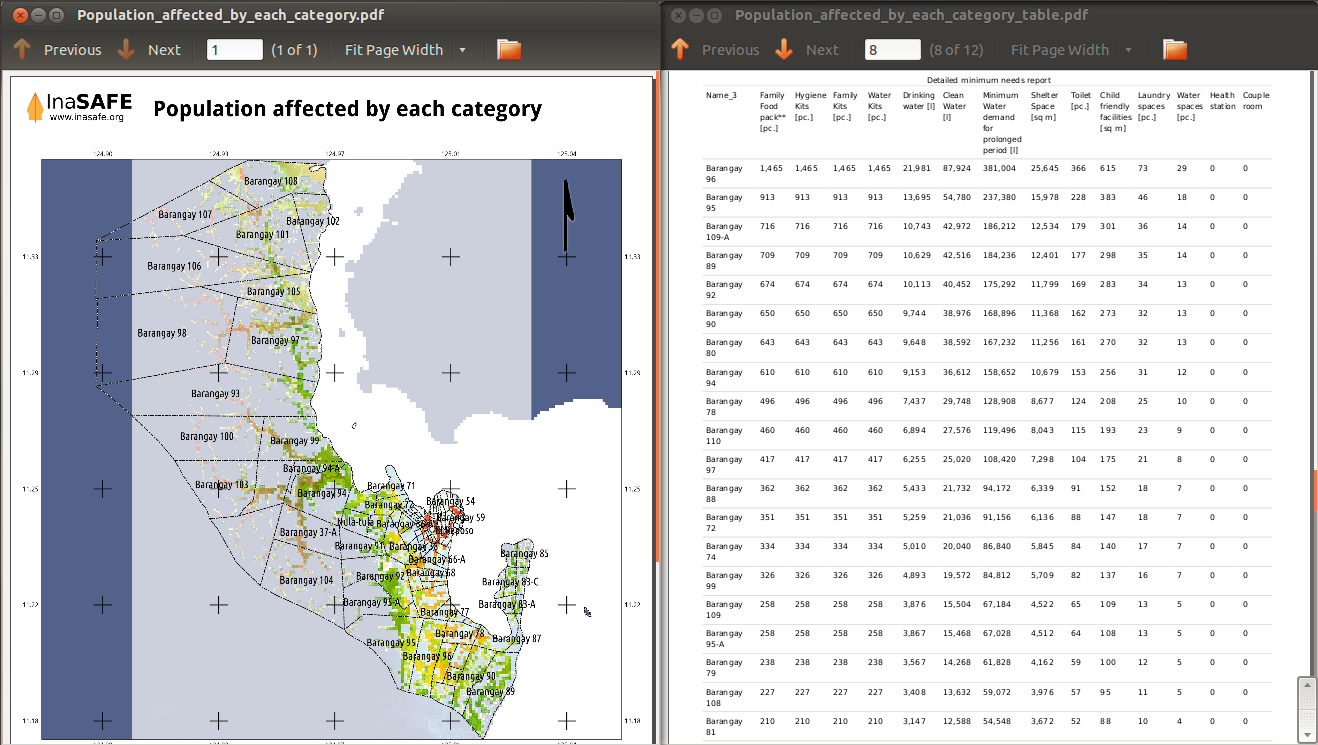
Save Results and QGIS project
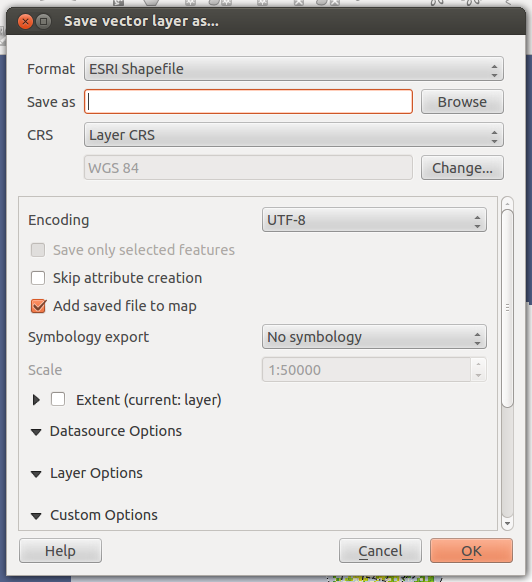
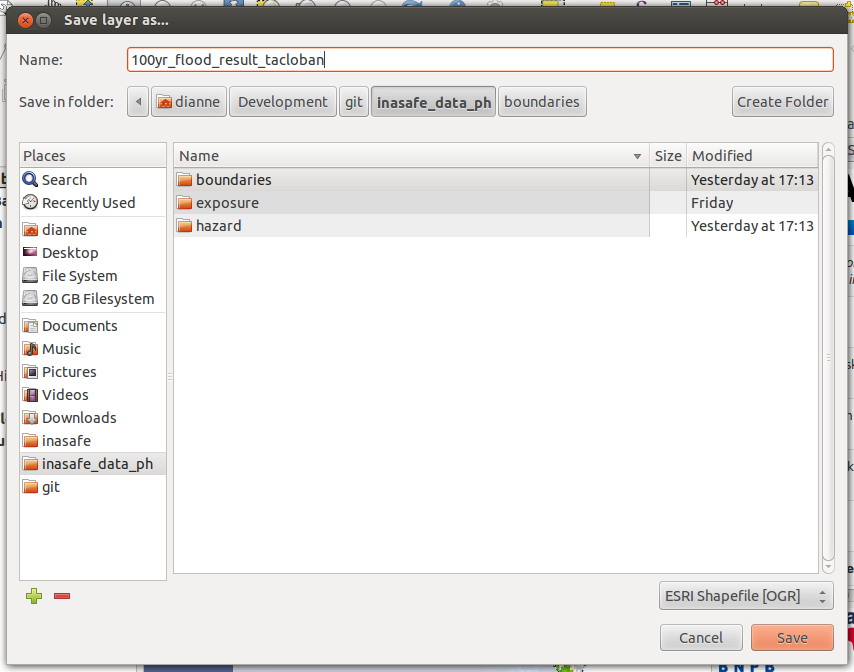
1. The output layer result of the assessment can be saved by right clicking on the layer. Click Save As to save it as a shapefile. A new message box will appear, click Browse button then choose what directory to be used for saving. However the keywords and statistics do not get saved.
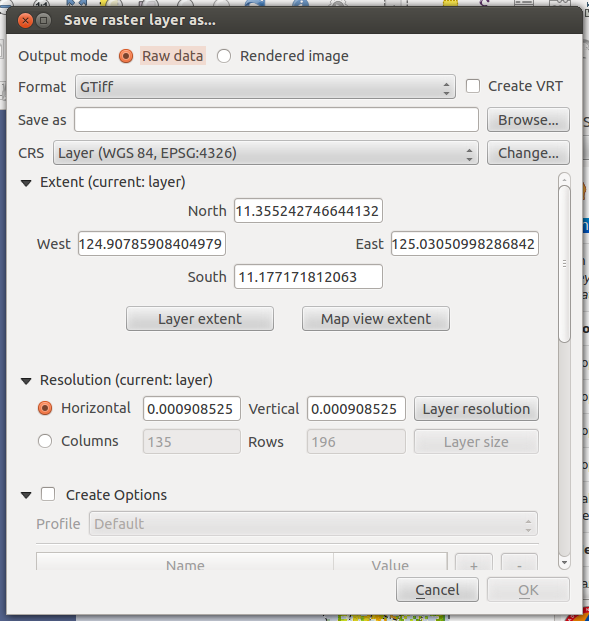
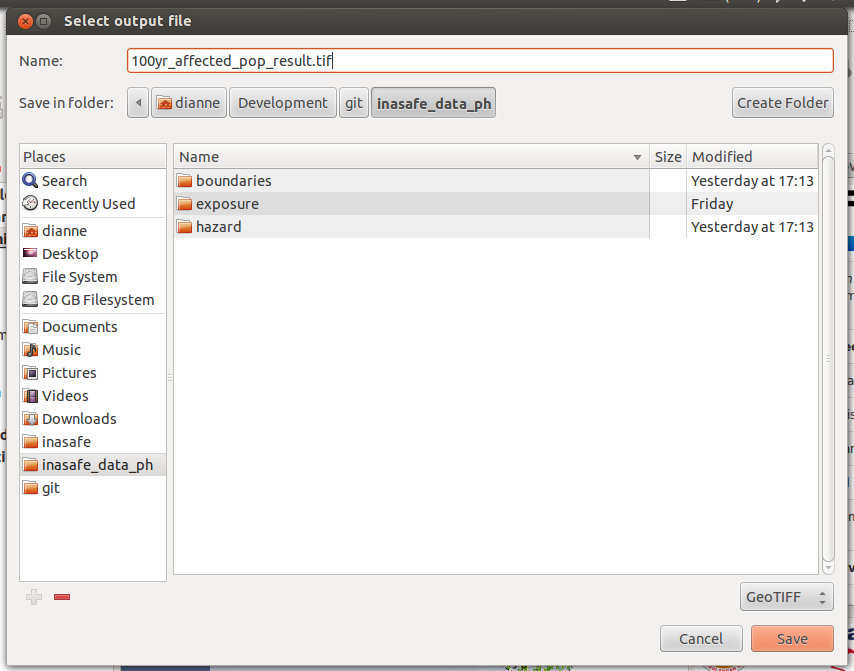
2. To save it as a raster. right click on the result layer and Click Save As. A new message box will appear, click Browse button then choose what directory to be used for saving.
3. You can also save the project under QGIS so that you can access your current window view anytime needed.
Now that the project is saved under QGIS, you can go back to your work anytime you need. However, the statistical data will be lost whenever the project is closed. To get the data back, you will need to redo the impact analysis process we described above from Run.
Further exercise
Using the data in your inasafe_data_ph directory answer the following questions with Inasafe:
- In case of landslide event, how many buildings might be impacted by each category?
- In case of landslide event, how many people might be affected by each category?
Explore the other features of InaSAFE.